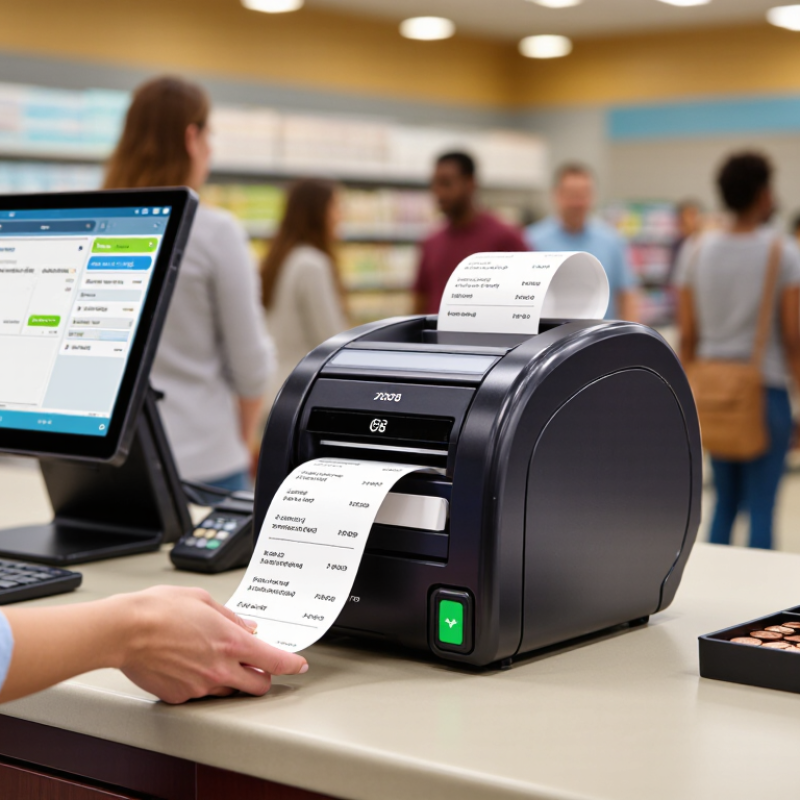
How to Choose a Thermal Receipt Printer in 2026?

Choosing a Thermal Receipt Printer in 2026 is not just a hardware decision. It affects queue times, receipt clarity, staff workflow, and the cost of daily operations. The National Retail Federation forecast U.S. retail sales of $5.23 trillion for 2024, highlighting the scale of checkout activity retailers must support. The Federal Reserve’s 2024 Diary of Consumer Payment Choice also reported that cash accounted for 16% of consumer payments in 2023. Receipts still matter. Even a small shop can feel the difference when a printer jams during a lunch rush.

The right choice depends on the details: print speed, paper width, connection options, counter space, and how easy the unit is to maintain. A quiet printer beside a crowded register may matter more than a long feature list. Steve Jobs offered a useful technology-selection principle: “You’ve got to start with the customer experience and work back toward the technology.” He was not a receipt-printer specialist, but the advice fits this decision well. One caveat: store conditions vary, so published specifications cannot replace a real workflow test. This guide compares the practical trade-offs, including reliability, compatibility, operating costs, and support, so you can match a Thermal Receipt Printer to the demands of your checkout—not just its product sheet.

How to Choose a Thermal Receipt Printer in 2026?

Define the Printing Requirements for Your Business

Choosing a thermal receipt printer starts with the work it must handle, not its advertised speed. Track receipts per day and tickets during the busiest 15 minutes. Our first estimate is often wrong. Measure a normal week, then check the rush.

The National Retail Federation’s 2024 Retail Returns report estimated U.S. returns at $890 billion, or 16.9% of annual retail sales.

That volume makes legible receipts and dependable reprints useful for service desks and exchanges. Test print clarity on the actual paper roll.

Match paper width to the information customers need. A 58 mm receipt may suit a compact checkout, while an 80 mm roll gives itemized orders more room. Print a sample with your longest product names, tax details, and QR codes. Small details matter.

Check daily print volume, cutter durability, and roll capacity; a busy counter should not require constant reloads. Confirm the printer works with your point-of-sale software and cash drawer.

Choose USB or Ethernet for fixed counters, or wireless connectivity where placement needs flexibility. Test it live. A brief peak-hour trial can reveal slow queues, awkward paper loading, or receipts that fade under bright lights.

Compare Print Speed, Resolution, Paper Width, and Cutter Type

Choosing a thermal receipt printer in 2026 starts with the work it must handle, not a headline speed. For a busy counter, compare rated print speed with a real test: print a long, itemized receipt, then check whether text stays readable as the queue grows. Fast is useful. But uneven feeding can still slow staff down. Resolution matters for small fonts, logos, and dense QR codes. Check a sample at actual receipt width rather than trusting a specification alone.

Paper width determines what fits without awkward wrapping. A 58 mm roll suits compact receipts and tight counters, while 80 mm paper leaves more room for item details. Measure the printer space and confirm the roll diameter, too. Wider is not always better; it can waste paper when most transactions are short. That trade-off is easy to overlook.

Cutter type affects daily handling. An automatic cutter separates receipts quickly, but a partial cut can make pickup easier; a full cut may send slips onto the floor. A tear bar has fewer moving parts, though tearing each receipt can feel slow during a rush. Test the printer with your intended paper stock. Specifications help, but they cannot reveal every jam or awkward reach. I would compare sample prints at the counter, even if the final choice still feels imperfect.

How to Choose a Thermal Receipt Printer in 2026

Typical print-speed ranges by receipt-printer class

These brand-neutral ranges are representative specifications, not guarantees for every model. Compare speed alongside your needs: 58 mm and 80 mm indicate common paper widths; 203 dpi is suitable for most receipts, while higher resolution can improve fine graphics. Choose a partial cutter for a retained paper tab or a full cutter for a clean, complete separation. Check the printer’s specification sheet for exact performance and compatibility.

Check Connectivity Options and Compatibility With Your POS System

How to Choose a Thermal Receipt Printer in 2026?
Check Connectivity Options and Compatibility With Your POS System

A thermal receipt printer is useful only when it works with your checkout setup. Check your POS device’s supported ports and operating system before comparing print speed. USB suits a fixed counter. Ethernet can serve shared tills and networked kitchens. Bluetooth or Wi-Fi reduces cables, but walls and crowded wireless signals can interrupt printing. Small detail. Check the required driver and command set, too. A connector may fit physically without producing a readable receipt. Test the printer with your actual POS software.

Market growth does not guarantee compatibility. Grand View Research estimated the global POS terminal market at USD 105.28 billion in 2023. Its report projected 8.5% annual growth through 2030. Bluetooth SIG’s 2024 market update forecast more than 5.4 billion Bluetooth device shipments annually by 2028. These figures suggest increasingly varied checkout setups, not universal printer support. Before buying, print a real receipt with item names, tax lines, and QR codes. Test reconnection after the terminal sleeps or the router restarts. Wireless may leave a cleaner counter. Still, keep a fallback plan; a specification sheet cannot reveal every Friday rush problem.

How to Choose a Thermal Receipt Printer in 2026? Check Connectivity Options and Compatibility With Your POS System

Connectivity Option Best Suited For POS Compatibility Checks Typical Setup Potential Limitations What to Confirm Before Buying
USB A single checkout computer, tablet dock, or fixed workstation located near the printer. Confirm the POS device has a compatible USB port and that its operating system and POS software support the printer’s driver or printing protocol. A USB connector alone does not guarantee compatibility. Connect the printer directly to the POS device, install any required driver, then select the printer in the POS settings. Usually connects one printer to one host. Cable length and device port availability may affect placement; some tablets require an adapter or powered hub. Check whether the port is USB-A, USB-B, USB-C, or another type; identify whether the printer acts as a USB device or host; verify supported operating systems and driver availability.
Ethernet (wired LAN) Fixed counters, shared checkout areas, and installations where a stable network connection is preferred. Confirm that the POS application can print to a network printer using the supported method, such as a network address, print service, or compatible driver. Connect the printer and POS device to the same local network, assign or reserve an IP address if needed, and configure the printer in the POS system. Requires a network cable and an available Ethernet port. Network rules, VLAN separation, or changing IP addresses can interrupt printing if not configured appropriately. Check supported network protocols, IP configuration options, security requirements, and whether the POS software supports network printing.
Bluetooth Mobile checkout, pop-up retail, and other setups where a cable-free connection to a nearby POS device is useful. Verify that the printer and POS device support the same Bluetooth mode and that the POS app supports printing over that connection. Bluetooth Classic and Bluetooth Low Energy are not interchangeable for every app. Pair the printer with the POS device, then select it in the app or operating-system printer settings, depending on the POS workflow. Range, radio interference, device pairing limits, and reconnection behavior can affect reliability. Some mobile operating systems or POS apps support only specific printing methods. Confirm Bluetooth version and mode, supported operating systems, pairing procedure, simultaneous connection limits, and compatibility with the exact POS app.
Wi-Fi Wireless counters, flexible printer placement, and locations where running a network cable is inconvenient. Confirm that the POS software supports printing over the local network and that the printer can join the site’s wireless network configuration. Connect the printer to the correct Wi-Fi network, configure its network settings, and add it to the POS system using the supported discovery or address method. Performance can be affected by weak signal, congestion, network changes, or guest-network isolation. Some printers support only particular frequency bands or security settings. Check supported Wi-Fi bands and security modes, setup method, network discovery requirements, and whether the POS device and printer can communicate across the network.
Serial (RS-232) Legacy POS terminals, specialized equipment, or installations that already use a serial interface. Both the POS device and printer must support compatible serial communication settings and a POS application or driver that can send print data through the serial port. Connect the serial cable and configure matching communication parameters, such as baud rate, data bits, parity, and flow control. Configuration may require technical support. Serial ports are uncommon on many current computers and tablets, and adapters may not work with every POS system. Verify connector type, cable wiring, supported communication settings, and whether the POS system provides a compatible serial port or tested adapter.
Multiple interfaces Businesses that may change their POS hardware or need a choice of wired and wireless connection methods. Check whether the POS system supports each interface separately and whether using one connection disables or changes another. Choose one supported interface for the installation and configure it according to the POS software’s requirements. Having several ports does not mean they can all be used simultaneously. Interface combinations and switching behavior vary by printer model. Confirm which interfaces are built in, which can operate at the same time, and whether the required drivers, protocols, and setup instructions are available.
POS protocol and operating-system support Every installation, regardless of the physical connection. Confirm support for the exact POS app, operating system, and printing method. ESC/POS is widely used, but command coverage and implementation can differ between devices and software. Install the required driver or SDK if applicable, select the correct paper width and print settings, and run a test receipt from the POS app. A printer may connect successfully yet still fail to print correctly if the POS app, driver, command set, or operating system is unsupported. Check the POS provider’s compatibility list, supported driver or SDK, receipt width, character and barcode support, and any required firmware or app version.
Cash-drawer connection Checkout counters that need a cash drawer to open automatically after a sale. Confirm that the POS software can send a drawer-open command through the printer and that the printer has a compatible cash-drawer port. Connect the drawer to the printer’s drawer port and test opening behavior through the POS system. Drawer connectors and electrical specifications can vary. A compatible printer connection alone does not ensure that a particular drawer will work. Check connector type, drawer voltage and pinout requirements, POS support for drawer commands, and whether the drawer is listed as compatible.

Evaluate Durability, Maintenance Needs, and Operating Costs

A thermal receipt printer should match the pace and conditions of the counter, not just fit the budget. In a busy shop, repeated printing can wear the printhead and platen roller over time. Heat, dust, and cramped placement may speed that wear. Ask for the printer’s rated duty cycle, then compare it with your typical busiest hour.

Maintenance affects more than repair bills. A removable paper path makes crumbs and paper dust easier to clear, while a replaceable cutter can simplify service after heavy use. Check whether routine cleaning requires special tools and whether common parts are readily available. Small details matter. I once overlooked how often staff would reload paper; awkward access can turn a minor task into a daily annoyance. Keep the unit away from spills, and follow the cleaning instructions rather than scraping residue from the printhead.

Operating costs include paper, replacement parts, labor, and downtime—not only electricity. Compare compatible roll sizes and paper quality, since poor rolls can leave faint prints or add debris. Estimate yearly roll use from actual transaction counts, then include likely service needs. A low purchase price may look attractive, but frequent stoppages can cost more in staff time. Still, no estimate is perfect; usage changes, and a quiet first month proves little about long-term durability.

Verify 2026 Standards and Test the Printer Before Buying

Before choosing a thermal receipt printer, verify the requirements that apply in your sales region in 2026. Ask for current compliance documents tied to the exact model, not a generic product sheet. Check the power adapter, electrical ratings, wireless options, and supported paper sizes. Requirements can vary by market. Do not assume “2026-ready” is proof of compliance.

Then test the printer with your actual point-of-sale setup. Send a full receipt containing small text, a logo, and a barcode. Scan the barcode under ordinary counter lighting. Print repeatedly during a busy period, and check for faded lines, delays, paper jams, or an overheated cutter. Small details matter. Test every connection you plan to use, and confirm that the printer works with your operating system and software version. A quick demonstration can look convincing, but it may not reveal problems after several hours of use.

Bring your own receipt template and paper roll to the trial. Listen for cutter noise, measure how quickly staff can reload paper, and inspect whether the print remains readable after handling. Ask how firmware updates and replacement parts are managed. I have seen a printer pass a brief test, then struggle with a different paper thickness. That may be an unusual case, but it is worth checking before purchase.

Certified Quality System

© North Easton Machine Company, Inc. All rights reserved. • Site: Blog
NORTH EASTON MACHINE • 218 Elm Street • North Easton, MA 02356 • 508-238-6219